
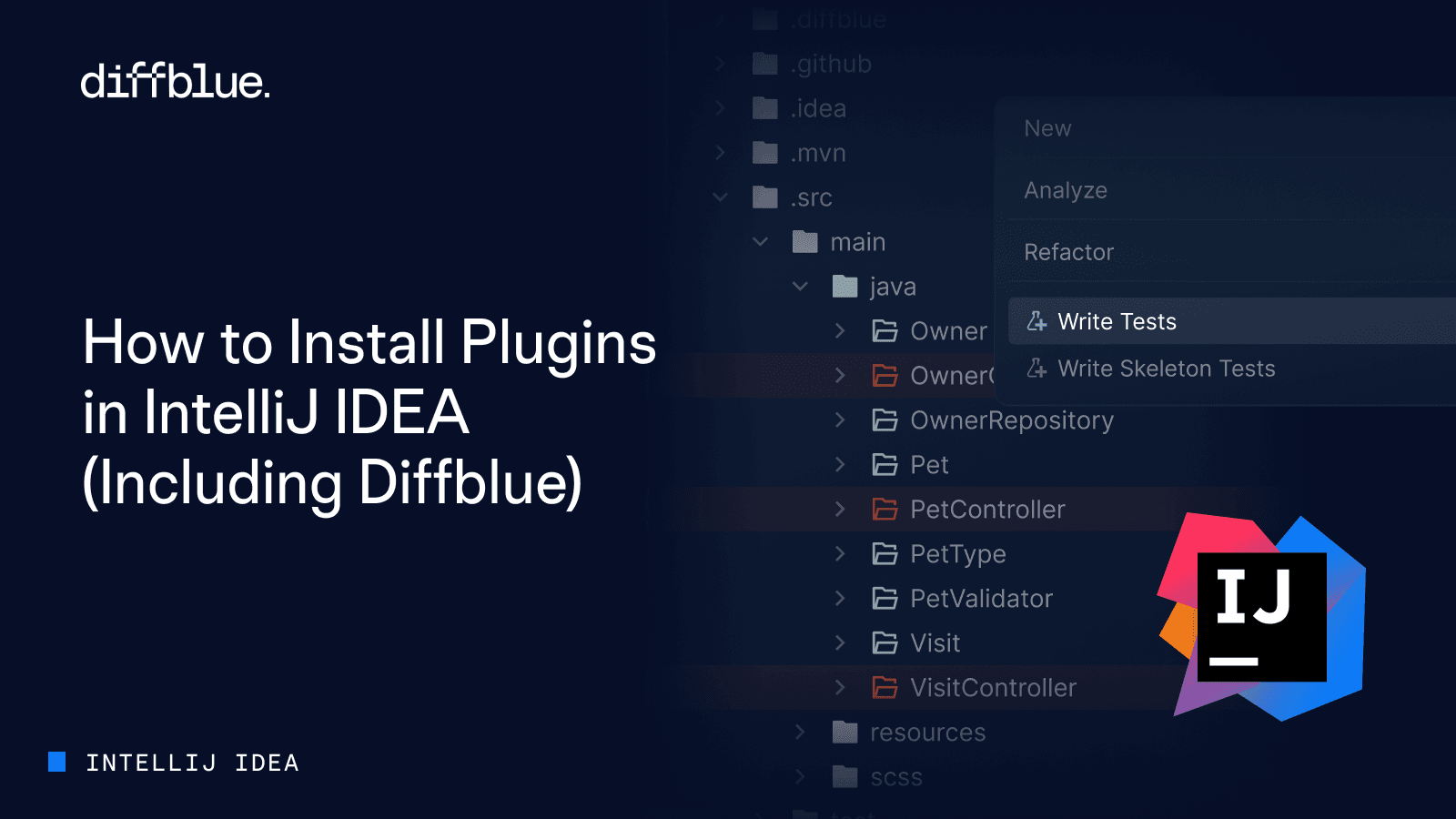

How to Install Plugins in IntelliJ IDEA (Including Diffblue)
IntelliJ IDEA’s plugin ecosystem transforms a powerful IDE into a customized development environment tailored to your specific needs. While most developers are familiar with clicking through the plugin marketplace, modern development teams need more efficient, reproducible methods for managing plugins.
This guide explores all available installation methods, from traditional GUI approaches to command-line automation.
Traditional Plugin Installation via Marketplace
The most common method for installing IntelliJ IDEA plugins remains the built-in Marketplace. To access it, navigate to File → Settings → Plugins (Windows/Linux) or IntelliJ IDEA → Preferences → Plugins (macOS).
The Marketplace tab displays thousands of available plugins with search functionality, ratings, and download statistics.
When selecting a plugin, IntelliJ automatically checks compatibility with your IDE version. Click the Install button, and the IDE handles downloading and initial setup.
Most plugins require a restart to activate fully. After restarting, verify installation by checking the Installed tab in the same Plugins settings.

For developers seeking automation, IntelliJ IDEA supports installing plugins from the command line, eliminating manual clicks and enabling scripted setups. This approach proves invaluable for team standardization and automated development environment provisioning.
First, we need the IntelliJ IDEA command line launcher to be present on the developer’s machine. The IntelliJ Toolbox App provides a feature to generate the necessary shell scripts.
Next, we can install plugins from the command line with:
Windows:
idea64.exe installPlugins <PluginID>
macOS/Linux:
idea installPlugins <PluginID>
To find a plugin’s ID, visit the JetBrains Marketplace, locate your desired plugin, and scroll to the Additional Information section.

Now, to install a plugin, quit IntelliJ IDEA before running the installPlugins command with the correct plugin ID.
Installing Diffblue Cover Plugin
Diffblue Cover represents the next generation of development tools – an AI-powered test generation plugin that automatically creates comprehensive JUnit tests. Unlike simple code generators, Diffblue Cover produces complete, runnable tests with meaningful assertions.
GUI Installation
Search for “Diffblue Cover” in the plugin marketplace. Click Install and restart IntelliJ. Upon restart, you’ll need to activate your license (a free Community Edition is available).


Command-Line Installation:
Copy the Plugin ID for Diffblue from the JetBrains Marketplace: com.diffblue.intellij.cover.plugin
Next, quit IntelliJ IDEA and run the following command:
# Windows
idea64.exe installPlugins com.diffblue.intellij.cover.plugin
# macOS/Linux
idea installPlugins com.diffblue.intellij.cover.plugin
After installation, activate your license via Diffblue → Activate License in the menu bar.
The Community Edition provides free access to AI-powered test generation for individual developers.
Using Diffblue Cover
Once installed, Diffblue Cover adds a flask icon in the gutter next to your Java classes and methods. Click this icon to generate comprehensive unit tests instantly.

The AI analyzes your code paths, creates appropriate mocks, and writes assertions that verify actual behavior—not just placeholder tests. This deterministic approach means the generated tests are consistent and reliable, avoiding the hallucination issues that can plague probabilistic AI systems.
Top 5 Essential IntelliJ Plugins for Java Developers
Beyond Diffblue Cover, these plugins significantly enhance Java development productivity:
1. SonarQube for IDE (org.sonarlint.idea)
Real-time code quality and security analysis that detects bugs, vulnerabilities, and code smells as you type. SonarQube helps maintain high code quality standards without waiting for CI/CD feedback.
idea64.exe installPlugins org.sonarlint.idea
2. Key Promoter X (Key promoter X)
Accelerates your transition to keyboard-driven development by showing keyboard shortcuts whenever you use mouse actions. This educational plugin helps you gradually memorize shortcuts and work more efficiently.
idea64.exe installPlugins "Key promoter X"
3. Google Java Format (google-java-format)
Automatically formats code according to Google Java Style Guide, ensuring consistent formatting across your team. Eliminates style debates and maintains a uniform codebase appearance.
idea64.exe installPlugins google-java-format
4. GitHub Copilot (com.github.copilot)
AI-powered code suggestions and completions that understand context and suggest entire functions or code blocks. Requires a GitHub Copilot subscription but significantly boosts coding speed.
idea64.exe installPlugins com.github.copilot
Copilot + Diffblue: A Complete Coverage Strategy: These tools solve different problems and work well together. Use Copilot for accelerating new feature development with AI pair programming. Use Diffblue Cover when you need comprehensive coverage fast, particularly for legacy or inherited code where you can’t afford production incidents. Copilot helps you write code faster; Diffblue ensures that code has a proper safety net.
5. Maven Helper (MavenRunHelper)
Simplifies Maven dependency conflict resolution with a visual dependency tree analyzer. Provides easy access to Maven goals and helps identify and resolve version conflicts quickly.
idea64.exe installPlugins MavenRunHelper
Building a Modern Java Development Environment
The plugins you choose shape your development workflow. For teams prioritizing code quality and production stability, consider this layered approach:
Code Writing Layer: GitHub Copilot accelerates development, Google Java Format maintains consistency, and Key Promoter X improves efficiency over time.
Quality Assurance Layer: SonarQube catches issues in real-time, while Diffblue Cover generates the comprehensive test suites that catch regression issues before they reach production. This combination is particularly powerful for teams practicing shift-left testing methodology.
Build & Dependency Layer: Maven Helper simplifies dependency management and conflict resolution.
This combination transforms IntelliJ from a capable IDE into a complete development environment that supports both velocity and quality.
Best Practices and Troubleshooting
Version Compatibility
Always verify plugin compatibility with your IntelliJ IDEA version before installation. Major IDE updates may require plugin updates or replacements. Check compatibility information on the plugin’s marketplace page.
Team Standardization
Create a documented list of required plugins with specific versions. Use scripted installation for new team members to ensure consistency. Consider maintaining a repository with your team’s plugin installation scripts.
Performance Monitoring
Too many plugins can slow IDE startup and operations. Regularly review installed plugins and disable unused ones via the Installed tab. Monitor IDE performance via Help → Diagnostic Tools.
Update Strategy
Configure automatic plugin updates for security patches while maintaining manual control over major version changes that might introduce breaking changes. Access update settings via File → Settings → Plugins → ⚙️ → Auto-update plugins.
Troubleshooting Installation Issues
- IDE Must Be Closed: Ensure IntelliJ IDEA is completely closed before command-line installation
- Network Issues: Check firewall settings if marketplace access fails
- Disk Space: Verify sufficient disk space for plugin downloads
- Logs: Review IDE logs (Help → Show Log) for detailed error messages
- Compatibility: Confirm plugin compatibility with your IDE version
- Permissions: Run command-line installations with appropriate permissions
Conclusion
Mastering IntelliJ IDEA plugin installation opens doors to significantly enhanced development productivity. We’ve explored both traditional GUI methods and powerful command-line approaches that enable automation and team standardization.
By leveraging tools like Diffblue Cover for automated test generation and combining them with code quality analyzers, formatting tools, and AI assistants, you transform IntelliJ from a great IDE into your personalized development powerhouse.
The command-line installation method particularly shines for team environments, enabling scripted setups that ensure every developer starts with the same toolkit. This consistency reduces onboarding time and eliminates the “works on my machine” syndrome that plagues many development teams.
Take action today: Start by installing Diffblue Cover to experience AI-powered test generation, then gradually add the other recommended plugins as needed.